Spring Boot Actuator, Grafana & Prometheus 모니터링 구축 및 연결
Spring Boot Actuator
- Spring Boot Actuator는 애플리케이션의 상태 및 메트릭 정보를 제공하는 다양한 REST 엔드포인트를 제공
- 대표적인 엔드포인트 : /actuator/health, /actuator/metrics, /actuator/info 등
메트릭(Metric) 정보란?
- 애플리케이션의 성능 및 동작 상태를 수치로 표현한 데이터
- 시스템이 어떻게 동작하고 있는지를 숫자로 보여주는 정보
주요 메트릭 종류
| jvm.memory.used | JVM이 현재 사용 중인 메모리 양 |
| jvm.gc.pause | Garbage Collection이 걸린 시간 |
| process.cpu.usage | 애플리케이션이 사용하는 CPU 비율 |
| system.cpu.usage | 전체 시스템에서 사용 중인 CPU 비율 |
| http.server.requests | HTTP 요청 수, 처리 시간, 상태 코드 등 |
| tomcat.sessions.active.current | 현재 활성화된 세션 수 (톰캣 기반) |
| logback.events | 로깅 이벤트 수 (info, error 등 로그의 수) |
예시
Actuator에서 제공하는 /actuator/metrics/jvm.memory.used 엔드포인트에 요청을 보내면, JVM 메모리 사용량에 대한 JSON 형식의 메트릭 데이터를 확인할 수 있다.
{
  "name": "jvm.memory.used",
  "measurements": [
    {
      "statistic": "VALUE",
      "value": 536870912
    }
  ],
  "availableTags": [
    {
      "tag": "area",
      "values": ["heap", "nonheap"]
    },
    {
      "tag": "id",
      "values": ["PS Eden Space", "PS Survivor Space"]
    }
  ]
}
위의 데이터는 JVM에서 heap 영역의 Eden Space가 약 512MB 사용 중이라는 의미이다.
용도
- 모니터링: 시스템이 정상적으로 동작하고 있는지 확인
- 알림/경고 설정: 특정 메트릭이 임계치를 넘으면 알림 전송
- 성능 튜닝: CPU/메모리 사용량 분석을 통한 최적화
- 대시보드: Prometheus + Grafana 같은 툴과 연동해서 시각화 가능
Prometheus
- 원래 SoundCloud에서 개발된 오픈 소스 시스템 모니터링 및 알림 도구, 현재는 독립적으로 오픈소스로 운영됨
- 주로 애플리케이션, 서버, 컨테이너의 성능 상태를 실시간으로 모니터링하는 데 사용됨
- Spring Boot Actuator 같은 서비스에서 수집한 메트릭 정보를 저장, 분석, 시각화할 수 있게 함
- 시계열 데이터(Time-series data)를 수집하고 쿼리할 수 있는 기능이 강력함
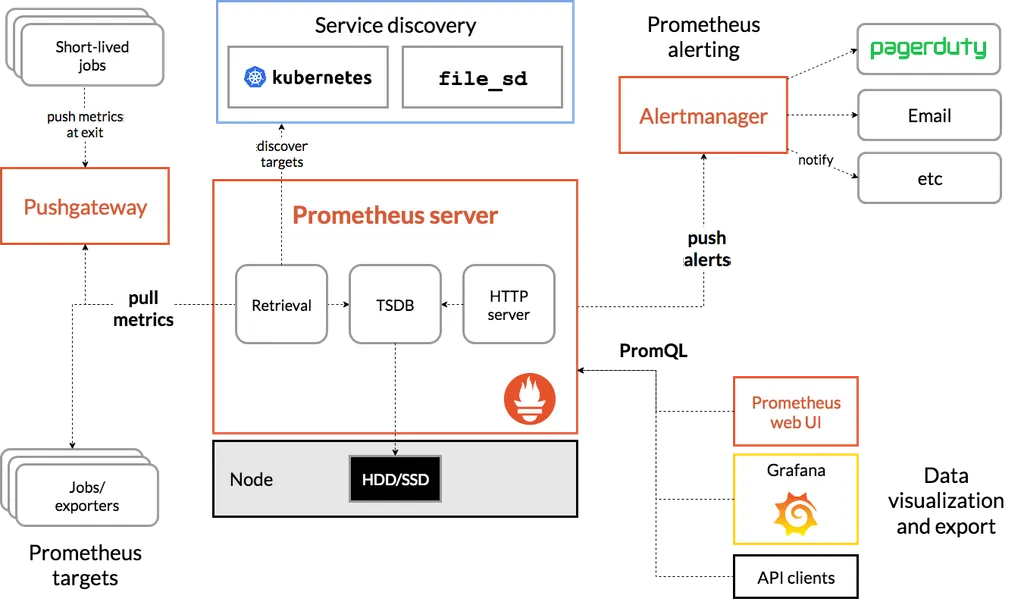
구성요소
구성 요소 설명
| Prometheus 서버 | 메트릭 데이터를 주기적으로 수집하고 저장 |
| Exporter | 메트릭 정보를 제공하는 대상 (예: Spring Boot Actuator) |
| Push Gateway | 푸시 방식으로 메트릭을 전달할 수 있도록 해주는 중간 지점 (옵션) |
| Alertmanager | 조건을 만족할 때 이메일, 슬랙 등으로 알림 |
| Grafana | Prometheus와 연동해서 데이터를 예쁜 대시보드로 시각화 가능 |
[참고] 연동 가능한 툴
툴 설명
| Grafana | Prometheus와 연동해 수집된 메트릭을 대시보드 형태로 시각화할 수 있는 오픈소스 도구 |
작동 방식
- Prometheus가 메트릭 데이터를 제공하는 곳(target)에 주기적으로 접근
- 예: http://localhost:8080/actuator/prometheus
- 메트릭 정보를 수집해서 내부 DB에 저장
- 저장된 데이터를 쿼리 언어로 분석 (PromQL)
- 알림을 설정하거나 Grafana로 시각화
예시
Spring Boot에서 spring-boot-actuator와 micrometer-registry-prometheus를 설정하면
/actuator/prometheus 경로에서 다음과 같은 데이터가 제공된다.
jvm_memory_used_bytes{area="heap",id="PS Eden Space"} 1.024e+08
http_server_requests_seconds_count{method="GET",uri="/api/user"} 500
Prometheus는 이러한 데이터를 수집해서 다음과 같이 사용할 수 있다.
- 시간별 그래프를 그리기
- 평균 요청 시간 계산하기
- 특정 조건 만족 시 경고 메시지 보내기 등
Spring Boot Actuator와 Prometheus( + Micrometer)
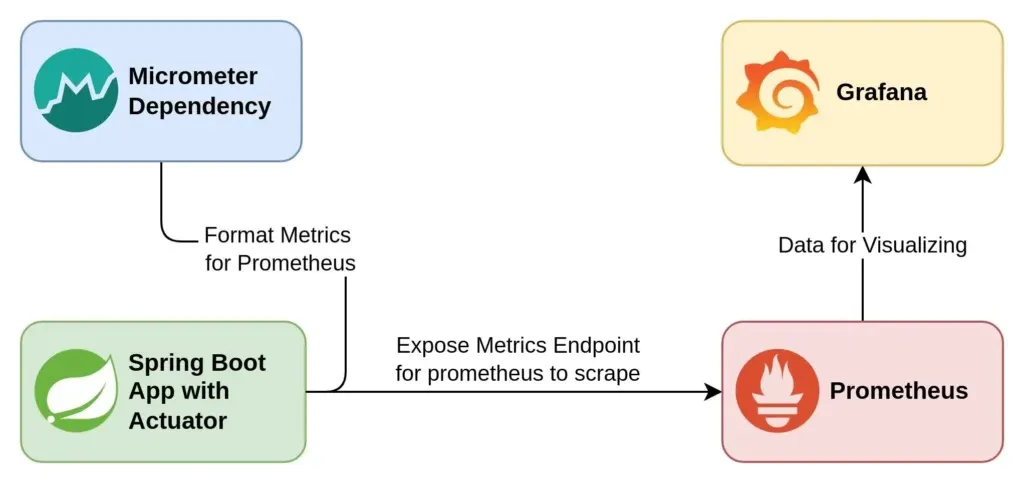
핵심 관계 요약
[Spring Boot App]
    │
    └── Actuator
           │
           └── Micrometer (메트릭 수집기)
                   │
                   └── Prometheus Registry (형식 맞춤)
                           ↓
[Prometheus 서버가 /actuator/prometheus 엔드포인트를 긁어서 수집]
Spring Boot Actuator
- Spring Boot에서 제공하는 운영용 진단 기능 모음
- /actuator/health, /actuator/metrics, /actuator/env 등 다양한 엔드포인트 제공
- 기본적으로 메트릭 정보를 수집하지만, 사람이 보기 좋은 JSON 형태로만 제공됨
- 내부적으로는 Micrometer를 사용해서 메트릭을 수집함
➡️ 하지만 이 데이터는 저장하거나 분석하거나 그래프화하지 않음
Micrometer
- Micrometer는 Spring Boot Actuator에서 사용하는 메트릭 수집 라이브러리
- Prometheus와 연동하기 위해 Prometheus 전용 registry를 추가해야 함
- JVM 메모리, GC 시간, HTTP 요청 수, DB 연결 수 등 다양한 항목을 수집함
- 다양한 백엔드 시스템(Prometheus, Graphite, New Relic, Datadog 등)에 데이터를 넘길 수 있음
➡️ Micrometer 자체는 수집만 하고 저장이나 시각화는 하지 않음
micrometer-registry-prometheus
- Micrometer가 Prometheus가 읽을 수 있는 형식으로 데이터를 노출해주는 라이브러리
- 설정하면 /actuator/prometheus 엔드포인트가 생성됨
- 내용은 Prometheus 서버가 주기적으로 읽어갈 수 있는 형식 (텍스트)
예: /actuator/metrics는 응답 결과가 JSON이지만
/actuator/prometheus는 Prometheus 포맷 으로 생성된다.
(ex: http_server_requests_seconds_count{method="GET"} 512)
Grafana
- Grafana는 메트릭 데이터를 시각화해주는 오픈소스 대시보드 도구
- 시계열 데이터베이스(TSDB) 데이터를 통찰력 있는 그래프와 시각화로 전환하는 도구를 제공
주요 특징
- 다양한 데이터 소스 지원
- Prometheus, Elasticsearch, MySQL, PostgreSQL 등 여러 데이터 소스를 연결할 수 있음
- 특히 Prometheus와 함께 쓰는 경우가 많음
- 실시간 대시보드 구성
- 메트릭 값을 그래프, 테이블, 게이지 등 다양한 형태로 시각화 가능
- 대시보드를 드래그 앤 드롭으로 자유롭게 구성할 수 있음
- 쿼리 언어 지원
- Prometheus와 연동할 경우 PromQL 사용
- SQL 기반 데이터소스는 SQL로 쿼리 가능
- 알림(Alerts) 기능
- 특정 조건에 따라 슬랙, 이메일 등으로 알림 전송 가능
- 예: CPU가 일정 수치 이상이면 경고 알림
- 공유와 협업
- 만든 대시보드를 URL로 공유하거나 PDF로 내보내기 가능
- 팀 단위로 대시보드 운영할 수 있음
모니터링 시스템 아키텍처
Spring Application에 설정하기
의존성 추가
dependencies {
    implementation 'org.springframework.boot:spring-boot-starter-actuator'
    implementation 'io.micrometer:micrometer-registry-prometheus'
}
libs.versions.toml 파일을 이용하여 관리하는 경우
[versions]
micrometer-registry-prometheus = "1.14.6"

[bundles]
# 필요한 프로젝트에 추가하기

[libraries]
spring-boot-starter-actuator = { module = "org.springframework.boot:spring-boot-starter-actuator", version.ref = "spring-boot" }
micrometer-registry-prometheus = { module = "io.micrometer:micrometer-registry-prometheus", version.ref = "micrometer-registry-prometheus" }
멀티 모듈 프로젝트의 경우
- 의존성 추가 위치는 → 애플리케이션 실행과 관련된 모듈
- 즉, Spring Boot Application (@SpringBootApplication)이 위치한 모듈 → actuator의 메트릭을 노출하고, 실행되는 주체
Actuator 호출 테스트
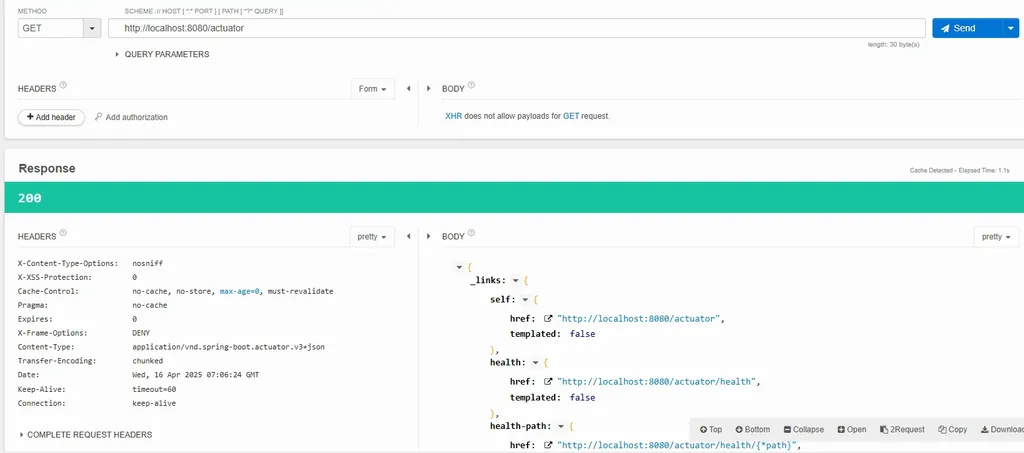
로컬호스트 기준으로, localhost:8080/actuator로 접속하면 Spring Boot Actuator가 기본적으로 제공하고 있는 Endpoint를 알 수 있다.
- Spring Security 사용 시 /actuator/prometheus 경로를 허용해야 한다.
yml 파일 설정
- yml에 exposure 설정을 변경하거나 추가하면서, 다양한 actuator endpoint를 접근할 수 있도록 열어줄 수 있다.
management:
  endpoints:
    web:
      exposure:
        include: prometheus
- 어떤 Actuator 엔드포인트를 HTTP로 외부에 노출할지 설정
- 이 설정이 없다면, 기본적으로는 health, info만 노출됨
- 여기서 prometheus를 포함시켰기 때문에 http://localhost:8080/actuator/prometheus 주소로 Prometheus 메트릭을 외부에서 접근 가능
- 즉, 엔드포인트를 열어주는 역할
management:
  prometheus:
    metrics:
      export:
        enabled: true
- Micrometer에서 Prometheus용 메트릭 export 기능을 활성화
- 이 설정이 있어야 Spring Boot 애플리케이션이 Prometheus가 읽을 수 있는 메트릭 형식으로 데이터를 준비함
- 즉, Prometheus 형식으로 메트릭 데이터를 만들도록 설정하는 역할
정리
management:
  endpoints:
    web:
      exposure:
        include: prometheus

  prometheus:
    metrics:
      export:
        enabled: true
위의 설정을 추가하고 http://localhost:8080/actuator/prometheus 호출 시 Prometheus가 읽을 수 있는 메트릭 형식으로 데이터가 호출됨
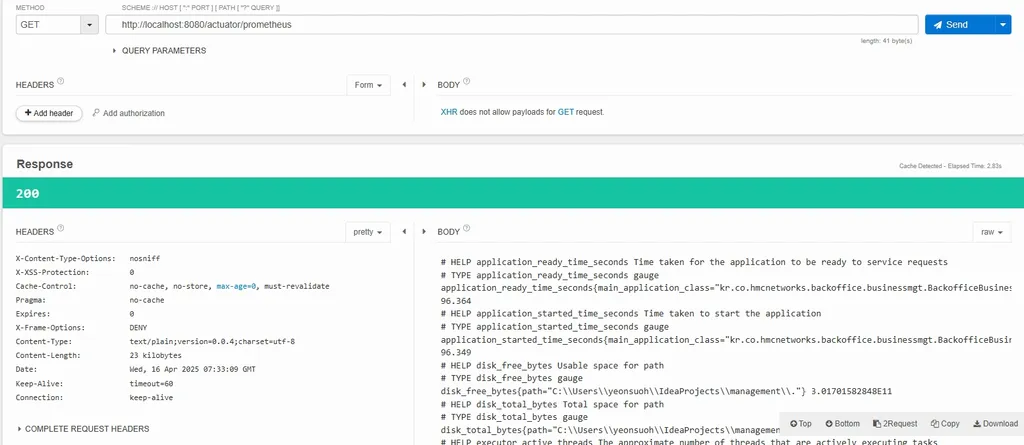
수집되고 있는 주요 메트릭
운영 정보 메트릭 이름 예시
| CPU 사용률 | process_cpu_usage, system_cpu_usage |
| 메모리 사용량 | jvm_memory_used_bytes, jvm_memory_max_bytes |
| GC 활동 | jvm_gc_memory_allocated_bytes_total 등 |
| 스레드 수 | jvm_threads_live_threads, jvm_threads_states_threads |
| DB 커넥션 | hikaricp_connections_*, jdbc_connections_* |
| 애플리케이션 부팅 시간 | application_started_time_seconds |
| HTTP 요청 처리 | http_server_requests_* |
| 로그 수 | logback_events_total |
| Spring Security 요청 처리 | spring_security_* |
Docker
- 가상 실행 환경을 제공해주는 오픈소스 플랫폼
- 도커를 사용하는 이유 : Prometheus와 Grafana 같은 모니터링 도구를 간편하게 실행하고 연결하기 위함
특징 설명
| 설치 간편 | Prometheus나 Grafana는 바이너리 다운로드보다 Docker 이미지로 띄우는 게 훨씬 빠름 |
| 버전 관리 쉬움 | docker-compose.yml에서 버전 명시 가능 |
| 시스템 환경 오염 없음 | 설치 없이 컨테이너만 실행 |
| 여러 서비스 연결 용이 | Spring App, Prometheus, Grafana를 하나의 compose로 관리 가능 |
Prometheus 설정
- Prometheus를 통해 서버 로그를 수집해와야 하므로, 타겟이 되는 서버와 관련된 정보를 저장하는 yml파일이 필요하다. 이를 prometheus.yml로 서버 내에 생성한다.
- 이렇게 생성한 파일은 docker-compose를 통해 Prometheus를 실행할 때, 해당 yml파일을 이용하도록 설정한다.
prometheus.yml (각 프로젝트별 적용한 예시)
scrape_configs:
  - job_name: 'project-A-api'
    metrics_path: '/actuator/prometheus'
    scrape_interval: 10s
    static_configs:
      - targets: ['100.200.100.100:8080']

  - job_name: 'project-B-api'
    metrics_path: '/actuator/prometheus'
    scrape_interval: 10s
    static_configs:
      - targets: ['100.200.100.100:9090']
⚠️ prometheus.yml 로컬 테스트용 설정⚠️
(Prometheus가 Docker 컨테이너 안에서 실행 중 & Spring Boot는 로컬에서 실행중일 때)
scrape_configs:
  - job_name: 'project-A-api'
    metrics_path: '/actuator/prometheus'
    scrape_interval: 10s
    static_configs:
      - targets: ['host.docker.internal:8080']

  - job_name: 'project-B-api'
    metrics_path: '/actuator/prometheus'
    scrape_interval: 10s
    static_configs:
- targets: ['host.docker.internal:9090']- 컨테이너 입장에선 localhost는 자기 자신이므로, 컨테이너 안에서 localhost:8080을 찍으면 Spring Boot 서버를 찾지 못할 수 있다.
- 이 경우에는 보통 host.docker.internal:8080 사용 (Mac/Windows)
- 리눅스일 경우엔 --network=host 쓰거나, IP 직접 지정 필요
Docker Compose 설정
docker-compose.yml
version: '3.8'

services:
  prometheus:
    image: prom/prometheus:latest
    container_name: prometheus
    user: "$UID:$GID"
    ports:
      - "19090:9090" # 외부 : 내부
    volumes:
      - ./prometheus.yml:/etc/prometheus/prometheus.yml
      - ./prometheus-data:/prometheus

  grafana:
    image: grafana/grafana:latest
    container_name: grafana
    user: "$UID:$GID"
    ports:
      - "3000:3000"
    volumes:
      - ./grafana-data:/var/lib/grafana
    depends_on:
- prometheus- (외부 9090 포트 사용중이라 19090으로 설정하였음)
- 설정 파일 마운트 :
- prometheus.yml: 타겟 서버 정보 포함 (필수)
- prometheus-data: 수집된 메트릭 데이터를 저장할 로컬 디렉토리 (데이터 유실 방지)
- volume mount를 해야하는 이유
- 도커 컨테이너를 삭제 후 재실행하는 상황이 발생하게 된다면, 도커 컨테이너 내에서 저장되고 있던 로그 데이터들이 휘발되는 상황이 발생할 수 있으므로 서버의 특정 경로와 연결시켜 로그 데이터들이 유실되는 상황을 방지해야 한다.
- 여기서 "$UID:$GID”는 echo $UID, id -g로 조회 후 실제 값을 넣어주어야 한다.
- Grafana는 Prometheus 실행 이후 시작되도록 설정 (종속 관계 정의)
- 디렉토리 구조 예시
project-root/
├── docker-compose.yml
├── prometheus.yml
├── prometheus-data/       # Prometheus 데이터 저장
└── grafana-data/          # Grafana 데이터 저장
디렉토리 생성
mkdir ~/monitoring
cd ~/monitoring
- 여기에 파일들 생성
- docker-compose.yml
- prometheus.yml
- (grafana-data/, prometheus-data/는 자동 생성됨)
Docker compose 실행 방법
docker-compose up -d
- 백그라운드 모드로 Prometheus와 Grafana 컨테이너 실행
- 실행 후 외부 포트로 정의한 포트에서 웹 UI에 접속 가능하다.
- Prometheus: http://{Docker Container 실행 중인 Host 공인 IP}:19090
- Grafana: http://{Docker Container 실행 중인 Host 공인 IP}localhost:3000
- 주의할 점 : docker-compose.yml이 있는 디렉토리에서 실행해야 함
로컬 테스트
[참고] WSL-Ubuntu에서 테스트하기
- docker desktop 최신 버전으로 업데이트
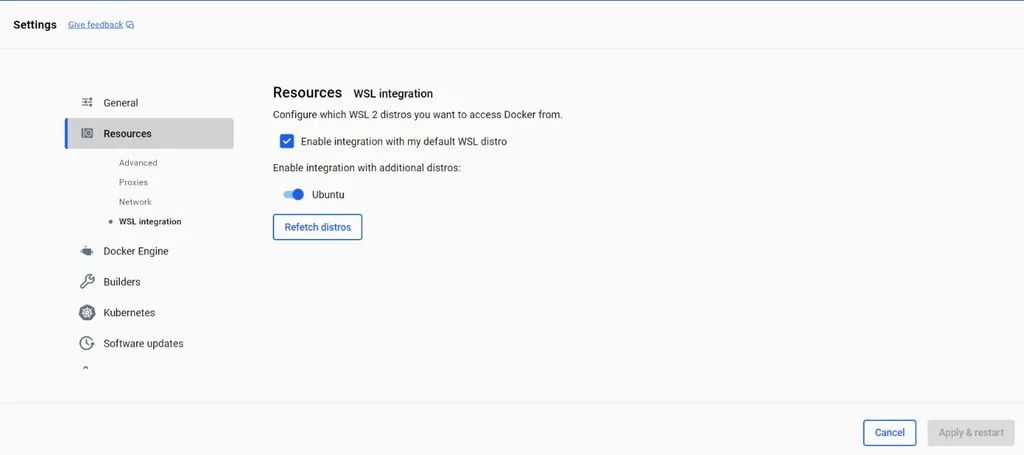
- Settings > Resources > WSL integrationUbuntu가 비활성화 되어있는데, 활성화한 후 Apply & restart 클릭
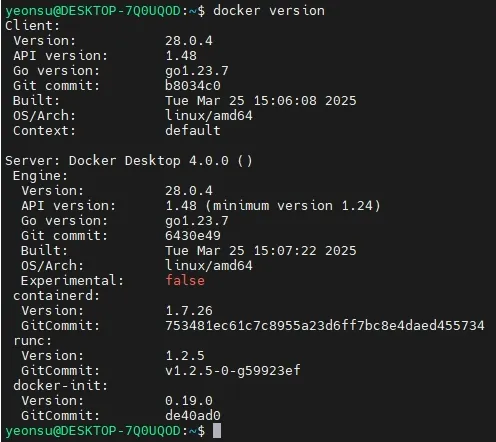
위 설정 없이는 다음처럼 WSL-Ubuntu 터미널에서 docker version 명령어 실행 시 ”The command ‘docker’ could not be found in this WSL 2 distro” 에러가 난다. 하지만 위 설정 후 다시 docker version 명령 실행 시 docker Client의 버전이 뜨는 것을 확인할 수 있다.
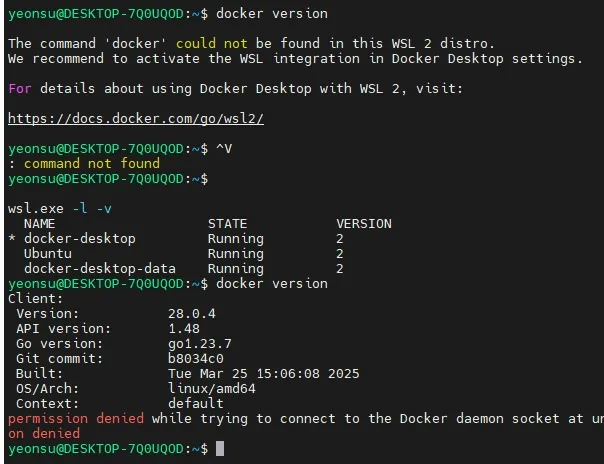
다만 docker Server의 버전을 보여주지 않으며 permission denied 에러가 뜬다. 이를 해결하기 위하여 사용자를 docker 그룹에 추가해야 한다.
getent group docker # docker 그룹이 존재하는지 확인
sudo groupadd docker # 없으면 이 명령어로 만들기
sudo usermod -aG docker $USER # 현재 유저를 docker 그룹에 추가
# 설정 반영을 위해 터미널 다시 시작

도커 그룹 설정 완료 시 permission 에러가 해결된다.
로컬에서 테스트 절차
- 프로젝트에 의존성 추가, security permit all 설정
- /monitoring 이라는 경로 만들고 내부로 이동 (mkdir -p ~/monitoring && cd ~/monitoring)
- prometheus.yml 파일 생성 (vim prometheus.yml)
- docker-compose.yml 파일 생성 (vim docker-compose.yml)
- 테스트 대상 서버 로컬에서 실행
- docker-compose 실행 (docker-compose up -d)
Prometheus 웹 UI 확인
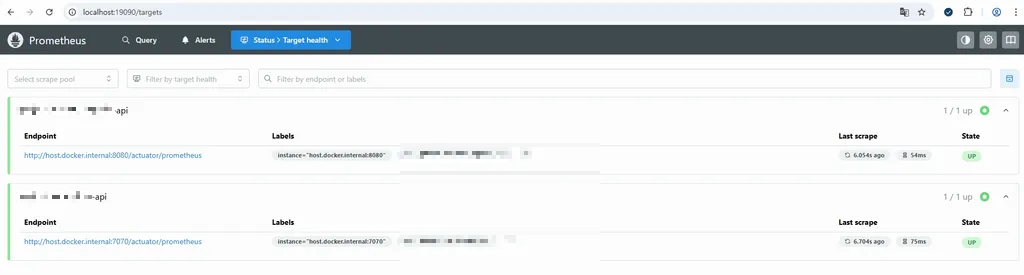
브라우저에서 http://localhost:19090 → prometheus gui 페이지 확인
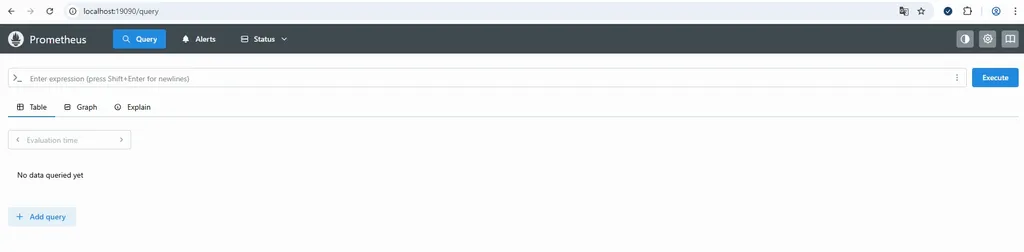
Status > Target health 에서 Spring Boot 애플리케이션의 Status가 UP 인지 확인할 수 있다.
Grafana 웹 UI 확인
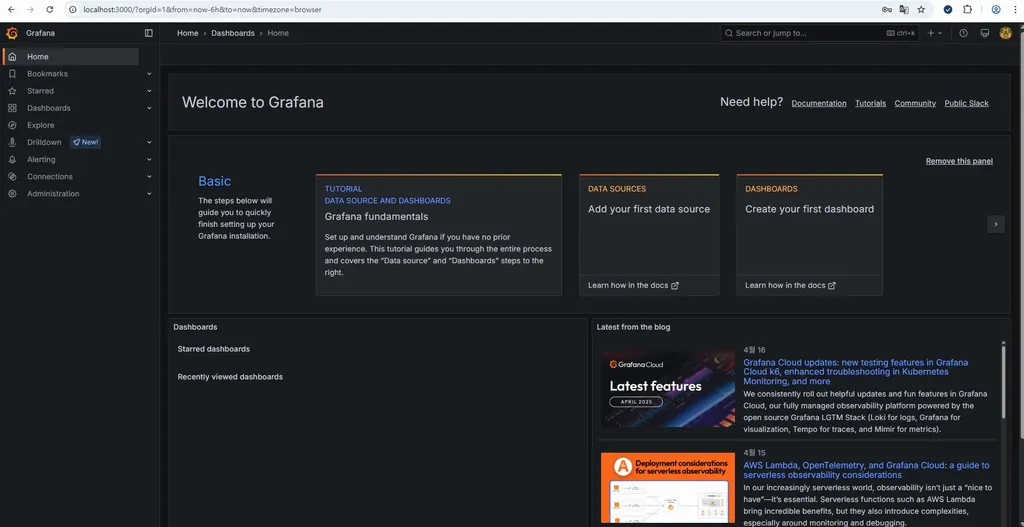
- 웹브라우저에서 http://localhost:3000 접속

- 기본 로그인 정보 :
- ID: admin
- PW: admin
- 로그인 시 비밀번호 변경 안내가 뜨게 된다.
- 로그인을 마치면 다음과 같은 화면이 나온다.
Grafana에서 Prometheus 데이터 소스 등록
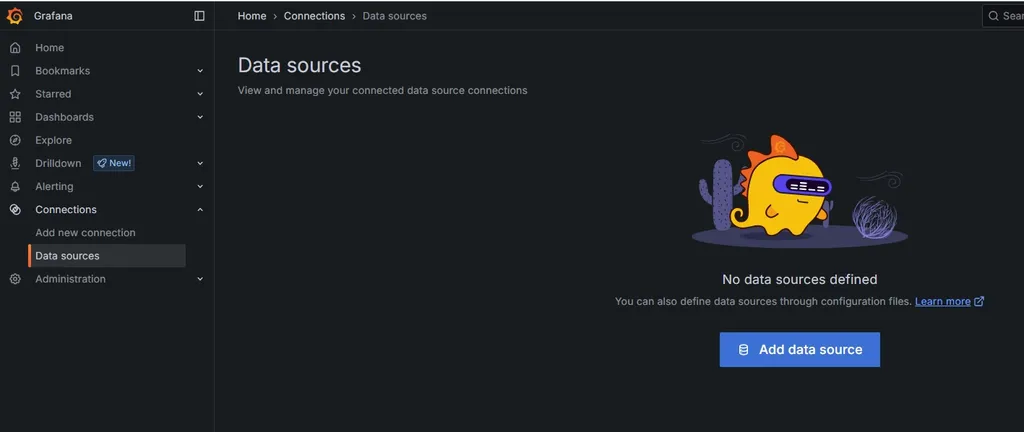
- Connections > Data sources > Add data source 클릭 후 prometheus를 클릭한다.
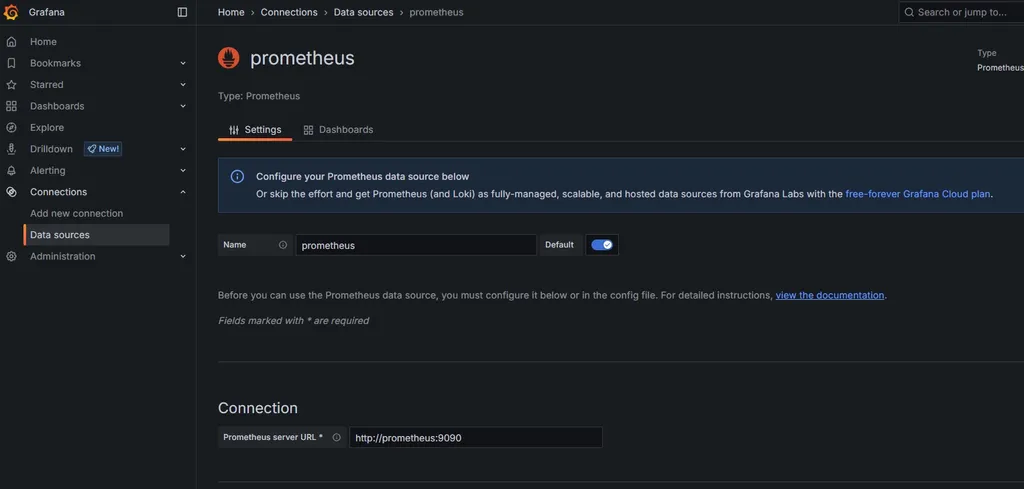
다음 화면에서 Connection - Prometheus server URL을 다음과 같이 입력한다.
- URL: http://prometheus:9090
- URL이 prometheus인 이유?
- Grafana도 Docker 컨테이너이다.
- Grafana에서 설정하는 Prometheus URL은 Grafana 컨테이너 → Prometheus 컨테이너 내부 통신을 말한다.
- 같은 Docker 네트워크 내에 있는 다른 컨테이너는 컨테이너 이름으로 접근할 수 있다.
- URL이 prometheus인 이유?
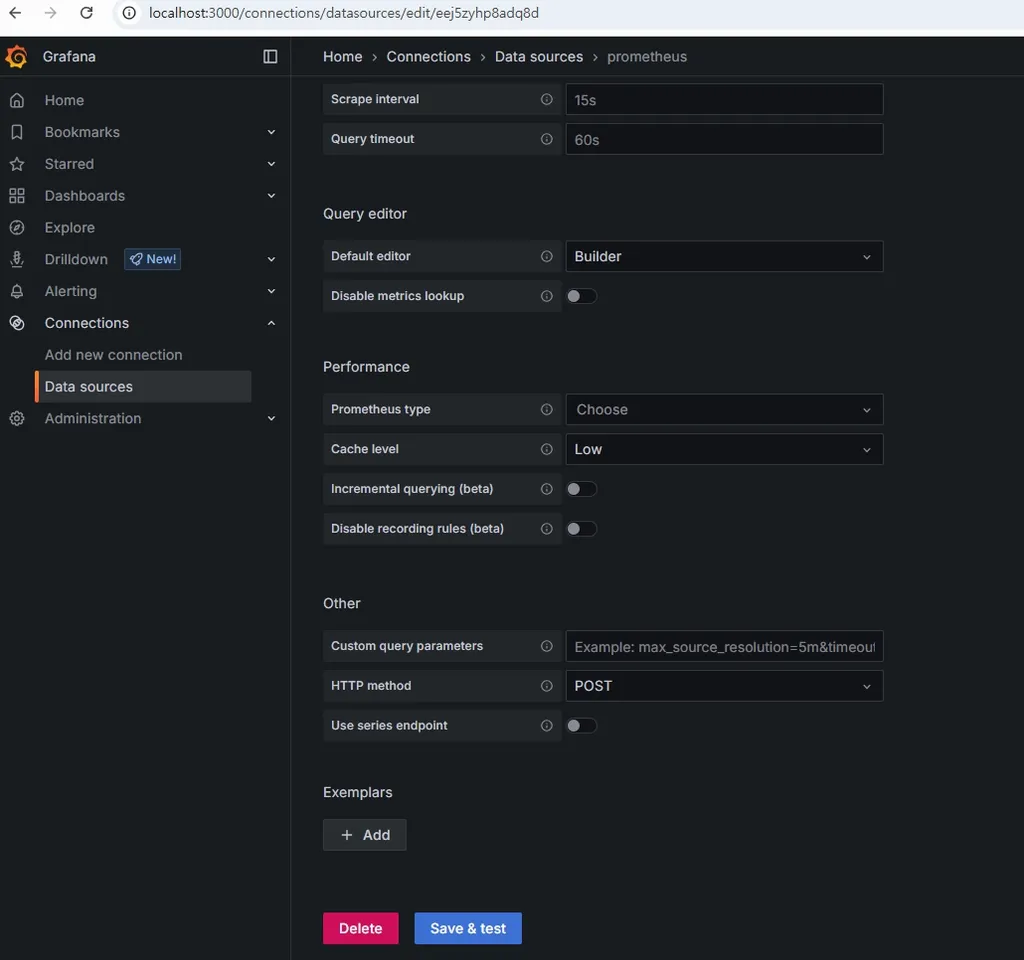
그 후 아래에 있는 Save & test 버튼을 누른다.
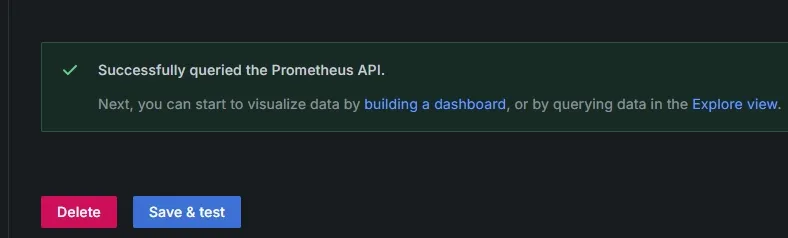
연결이 잘 되었다는 메시지를 확인한다.
Dashboard import - Spring Boot 3.x Statistics (19004)
해당 템플릿의 특징
항목 설명
| 전체 관측 범위 | JVM, HTTP, HikariCP, Threads, Disk 등 애플리케이션 전반의 메트릭을 종합적으로 시각화 |
| Spring Actuator 메트릭 친화적 | micrometer-registry-prometheus 연동 기준의 Spring Boot 3.x 메트릭에 맞춰져 있음 |
| HTTP 상태 코드, 에러 응답률 포함 | 에러 모니터링까지 포함돼 있어 “오류 추적”에 유리 |
| 애플리케이션 중심 설계 | 단순 JVM 레벨이 아니라 Spring Boot 자체를 운영하는 데 필요한 모든 지표 제공 |

템플릿을 선택한 후 Dashboard ID를 복사한다. (19004)
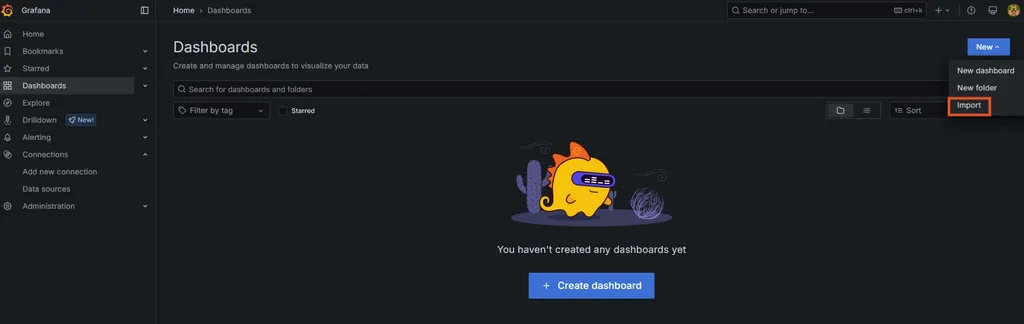
Grafana의 Dashboards 탭에서 New > import를 클릭한다.
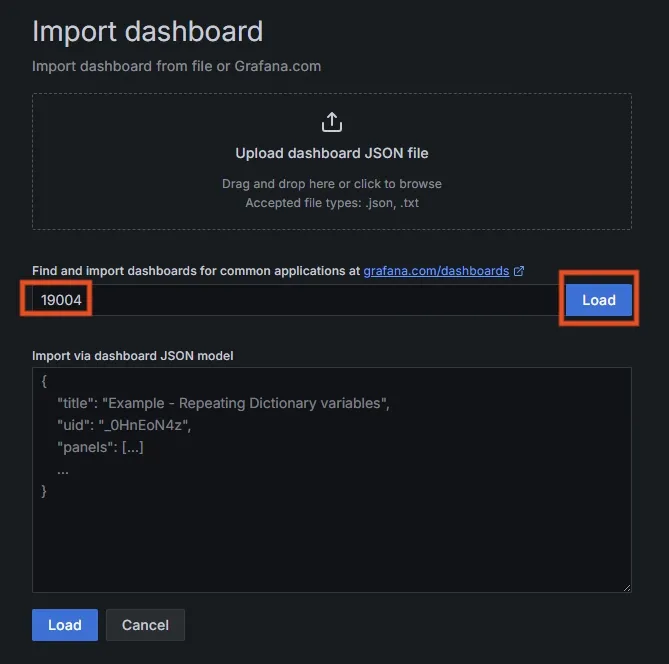
복사한 ID를 입력하고 Load를 클릭한다.
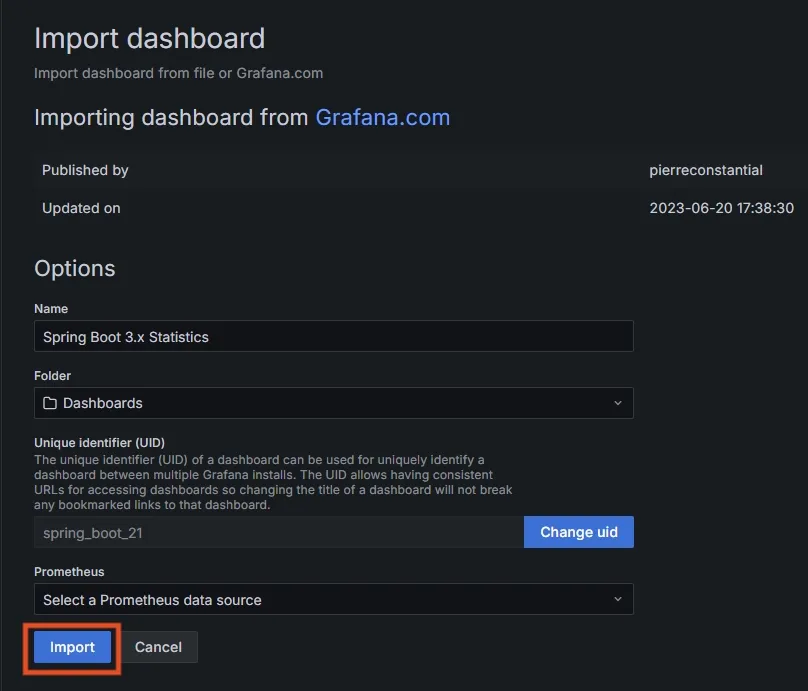
그 후 나오는 화면에서 Prometheus 부분에서 위에서 설정한 data source인 prometheus를 선택하고, import를 클릭한다.
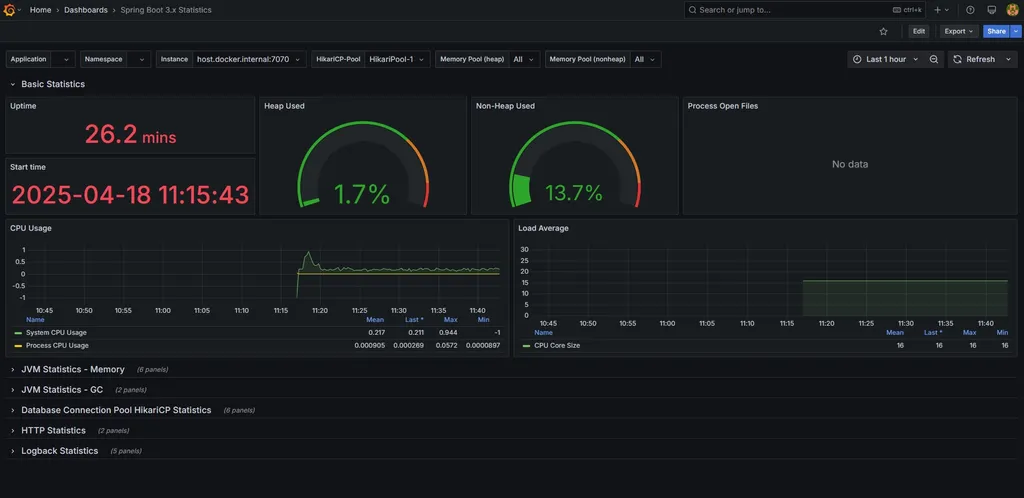
- 생성 완료 시 위와 같은 대시보드 화면을 볼 수 있다.
- 위의 Instance 설정을 통하여 prometheus.yml에 설정한 인스턴스들을 바꿔가며 조회할 수 있다.
운영 환경 적용
적용 전 보안 관련 고려 사항
- 해당 모니터링 서비스는 모두가 접근하면 안되기에 접근 제한을 걸어두어야 함
- Whitelist 방식으로 특정 IP만 접근이 가능하도록 하여 보안성을 높일 수 있음
/actuator/** 공개는 위험
- /actuator는 단순히 /prometheus만 있는 게 아니다.
- 기본적으로 헬스체크, 환경정보, 로그레벨 조작 등 민감한 정보에 접근이 가능하다.
- 예시
- /actuator/env → 환경 변수 정보 노출 (DB, 인증키 위험)
- /actuator/beans → 전체 빈 정보 노출
- /actuator/loggers → 실시간 로그레벨 조작 가능
- 이런 정보는 공격자에게 아주 유용한 인사이트가 될 수 있다.
IP Whitelist + 최소화된 endpoint 노출
- 보안적으로 허용된 IP에게만 /actuator/prometheus 공개
- docker로 Prometheus를 띄우는 인스턴스의 IP를 접근 허용 IP로 설정하면 된다.
- 실제로 Prometheus가 스크래핑 요청(GET /actuator/prometheus)을 날릴 주체이기 때문이다.
- DockerIp의 경우 하드코딩 하지 않고, yml 파일로 관리하기
- [예시]
monitor:
  allowed-ip: 000.000.000.00 # docker 공인 ip
  prometheus-path: /actuator/prometheus
SecurityConfig 클래스 내에 설정 추가, private fun 생성
- .authorizeHttpRequests {} 안에 추가
                    .requestMatchers(authMonitorProperties.prometheusPath)
                    .access(ipRestrictor(authMonitorProperties.allowedIp))
- private function 생성
    private fun ipRestrictor(allowedIp: String): AuthorizationManager<RequestAuthorizationContext> {
        val log = LoggerFactory.getLogger("IpRestrictor")
        return AuthorizationManager { _, context ->
            val remoteIp = context.request.remoteAddr
            val isAllowed = remoteIp == allowedIp

            if (!isAllowed) {
                log.warn("[IP 검증 실패] remoteIp=$remoteIp, allowed=$allowedIp")
            }

            AuthorizationDecision(isAllowed)
        }
    }
docker instance 적용 중 트러블 슈팅
1. docker-compose up -d로 해보았을 때 prometheus, grafana 컨테이너가 뜨지 않음
- 꺼진 컨테이너 보기
docker ps -a

- prometheus, grafana 이름의 컨테이너가 Exited 상태로 있음
- 에러 로그 확인
docker logs <컨테이너ID 또는 이름>
docker logs prometheus
backend@hmc_server_02:~/docker/grafana$ docker logs prometheus
time=2025-04-23T02:26:12.043Z level=INFO source=main.go:640 msg="No time or size retention was set so using the default time retention" duration=15d
time=2025-04-23T02:26:12.043Z level=INFO source=main.go:687 msg="Starting Prometheus Server" mode=server version="(version=3.3.0, branch=HEAD, revision=3c49e69330ceee9c587a1d994c78535695edff16)"
time=2025-04-23T02:26:12.043Z level=INFO source=main.go:692 msg="operational information" build_context="(go=go1.24.1, platform=linux/amd64, user=root@b362765c931d, date=20250415-13:32:00, tags=netgo,builtinassets,stringlabels)" host_details="(Linux 4.15.0-197-generic #208-Ubuntu SMP Tue Nov 1 17:23:37 UTC 2022 x86_64 b2f72aecfe35 (none))" fd_limits="(soft=1048576, hard=1048576)" vm_limits="(soft=unlimited, hard=unlimited)"
time=2025-04-23T02:26:12.054Z level=INFO source=main.go:768 msg="Leaving GOMAXPROCS=16: CPU quota undefined" component=automaxprocs
time=2025-04-23T02:26:12.061Z level=ERROR source=query_logger.go:113 msg="Error opening query log file" component=activeQueryTracker file=/prometheus/queries.active err="open /prometheus/queries.active: permission denied"
panic: Unable to create mmap-ed active query log

goroutine 1 [running]:
github.com/prometheus/prometheus/promql.NewActiveQueryTracker({0x7ffde2ae8f7d, 0xb}, 0x14, 0xc000054690)
        /app/promql/query_logger.go:145 +0x345
main.main()
        /app/cmd/prometheus/main.go:795 +0x813d
- 원인 정리
Error opening query log file
component=activeQueryTracker file=/prometheus/queries.active
err="open /prometheus/queries.active: permission denied"

panic: Unable to create mmap-ed active query log

/prometheus 디렉토리는 Prometheus 컨테이너 내부에서 **쓰기(write)**를 하려고 하는데, 지금 연동된 **호스트 디렉토리의 권한이 부족해서 실패함**
- 원인은 ‘docker-compose up -d’를 할 때 볼륨 마운트를 위하여 생성되는 디렉토리가 root 권한으로 생성되는데, 그 디렉토리에 현재 사용자(backend)가 쓰기 권한이 부족하여 생기는 것이었다.
backend@hmc_server_02:~/docker/grafana$ ls -ld ./prometheus-data ./grafana-data
drwxr-xr-x 2 root root 4096 Apr 23 11:59 ./grafana-data
drwxr-xr-x 2 root root 4096 Apr 23 11:59 ./prometheus-data
backend@hmc_server_02:~/docker/grafana$ id
uid=1009(backend) gid=1009(backend) groups=1009(backend),4(adm),27(sudo),999(docker)
backend@hmc_server_02:~/docker/grafana$
[참고] https://sweethoneybee.tistory.com/28
- 해결 방법
- root 권한으로 생성된 기존 디렉토리 삭제
rm -rf ./prometheus-data ./grafana-data
- 현재 계정으로 디렉토리 다시 생성
mkdir ./prometheus-data ./grafana-data
- 권한 확인
ls -ld ./prometheus-data ./grafana-data
결과에 권한이 backend로 나오면 성공
backend@hmc_server_02:~/docker/grafana$ ls -ld ./prometheus-data ./grafana-data
drwxrwxr-x 6 backend backend 4096 Apr 23 12:03 ./grafana-data
drwxrwxr-x 4 backend backend 4096 Apr 23 12:03 ./prometheus-data
- 컨테이너 재시작
docker-compose down
docker-compose up -d
- 컨테이너가 잘 실행되었다.

2. 컨테이너가 실행되었지만 prometheus, grafana 대시보드에 접근 불가
-> 포트포워딩, 방화벽 관련 이슈로 관리자에게 요청하여 해결하였다.
[참고]
https://velog.io/@hongjunland/Spring-Boot-Spring-Boot-Actuator-Grafana-Prometheus-%EC%97%B0%EA%B2%B0
[Spring Boot] Spring Boot Actuator, Grafana & Prometheus 모니터링 구축 및 연결
애플리케이션의 성능 테스트를 하는데, 모니터링 및 시각화 도구를 사용해보고자 했습니다. 많은 사람들이 사용하는 Spring Boot Actuator , Prometheus, Grafana 의 사용 방법에 대해 기록하고자 합니다.
velog.io
[모니터링] Spring Boot + Prometheus + Grafana 도입하기
모니터링 도입기
velog.io
https://sweethoneybee.tistory.com/28
0915 Docker volume permission 문제(해결완료)
Docker volume permission 문제 해결방법 (이 문서는 아티클을 참고해서 번역하고 정리한 글입니다.) (우리 프로젝트에 적용한 사례도 있습니다) 프로젝트를 진행하면서 도커로 컨테이너를 띄웠는데 log
sweethoneybee.tistory.com